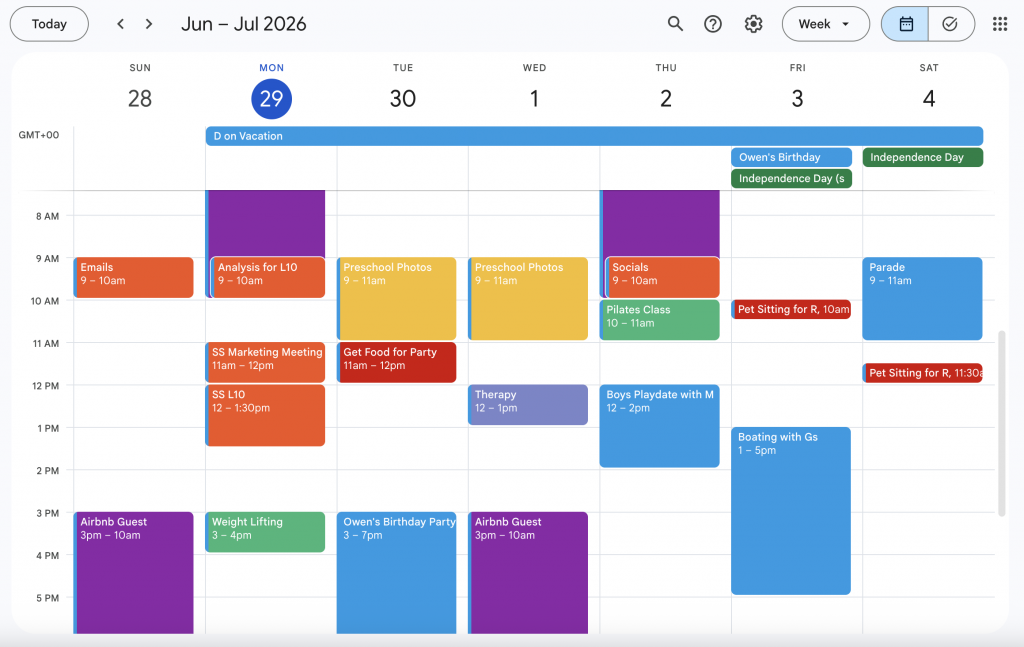
If you haven’t joined the Google bandwagon yet, today is the day! Start a Gmail account. It is free and creates synergy (one login) between your calendar, photos and all the other amazing Google apps at your fingertips.
HOW TO CREATE A GMAIL ACCOUNT:
- Navigate to https://accounts.google.com.
- Click Create Account and select whether it is for personal use, a child or business.
- Follow the on-screen prompts to enter first/last name, birthdate and gender.
- Choose a Username that will be your username@gmail.com address.
- Create a Password.
- Add Recovery Info like phone number or recovery email to secure your account.
- Accept Terms to complete your account setup.
Easy peasy. Now that you have a brand spanking new Gmail account, you are ready to explore the greatness that is Google Calendar.
When signed into your new Gmail account on desktop you can access the calendar by clicking the grid icon (Google Apps) in the top right corner of your screen and selecting Calendar. Alternatively, if on mobile you can download the Google Calendar app and go there directly.
HOW TO CREATE AN EVENT IN GOOGLE CALENDAR:
- To Create an Event click the large create button at the top-left corner of your desktop screen or click on any empty time slot directly on your calendar grid. On mobile, click the + button on the bottom right corner of your phone and choose Event.
- Add Event Details by typing in a title, and selecting the specific date, time and time zone.
- Invite Guests by entering their email addresses in the guests field.
- Add Location Details by typing in a physical location and letting Google auto-fill the correct selection.
- Click Save to finalize.
Done and done. You are now a Google Calendar Pro. Want to make it to Expert level? Follow these tips below:
- Optimize your schedule with FOCUSED BLOCKS of time.
- Don’t just schedule meetings or events, but instead block times on your calendar for uninterrupted work on specific tasks.
- Automate recurring events with the dropdown so that you don’t have to create the same event over and over. Click on the Does not repeat button within an event to implement.
- Integrate your to-do list with your calendar by using the Google Tasks sidebar icon, where tasks with specific due dates will automatically appear on your calendar.
- Implement a beautiful COLOR-CODING system.
- Create a system that works for you to quickly see your priorities at a glance. Purple for general events and social outings, Green for hobbies or gym time, Red for urgent tasks and Yellow for birthdays and anniversaries.
- Leverage SMART NOTIFICATIONS.
- Set custom notifications based on the event (e.g., one day, one hour, ten minutes prior.)
- Enable Daily Agendas in your calendar settings to see your entire day’s schedule in your email every morning.
- Use MULTIPLE CALENDARS.
- Create separate calendars for different areas of your life.
- Share specific calendars with others and assign permission levels so they can help coordinate.
- Add Calendars of Interest such as regional holidays, sports team events, etc.
That’s all folks. It is that easy to start organizing your chaos with Google Calendar.
An added bonus is that if you receive emails with flight confirmations, concert tickets or reservations in your Gmail inbox then Google Calendar will automatically extract these and add them as events for you. Yay for less work!
I won’t share how many calendars I have as I fear that is too overwhelming for the newbies out there. However, I will admit that my type-a personality absolutely uses the crap out of Google Calendar. It keeps my chaotic life organized, and helps my husband stay on top of our daily events and tasks. Therefore, it saves us from a lot of fights!
Remember my mantra, “If it’s not on the calendar, it doesn’t exist.” Feel free to start using it!